
Have you ever wanted to use WhatsApp from your computer? Learn everything about web WhatsApp QR code — setup, features, troubleshooting, multi-device support, and expert tips.
Have you ever wanted to effortlessly switch between your phone and computer while using WhatsApp? Or maybe you want to manage multiple WhatsApp sessions at the same time?
Say hello to WhatsApp Web, the official browser-based extension of WhatsApp that uses a web WhatsApp QR code for quick login.
With over 2 billion active users worldwide, WhatsApp is the most popular messaging app globally, and web WhatsApp QR code is a vital feature for people who want flexibility and productivity while chatting.
In this ultimate guide, we’ll cover:
- What is a web WhatsApp QR code
- How to scan and use it
- Key features & customizations
- Multi-device usage tips
- Security & privacy best practices
- Common troubleshooting solutions
By the end, you’ll become a WhatsApp Web power user.
📌 What is a Web WhatsApp QR Code?
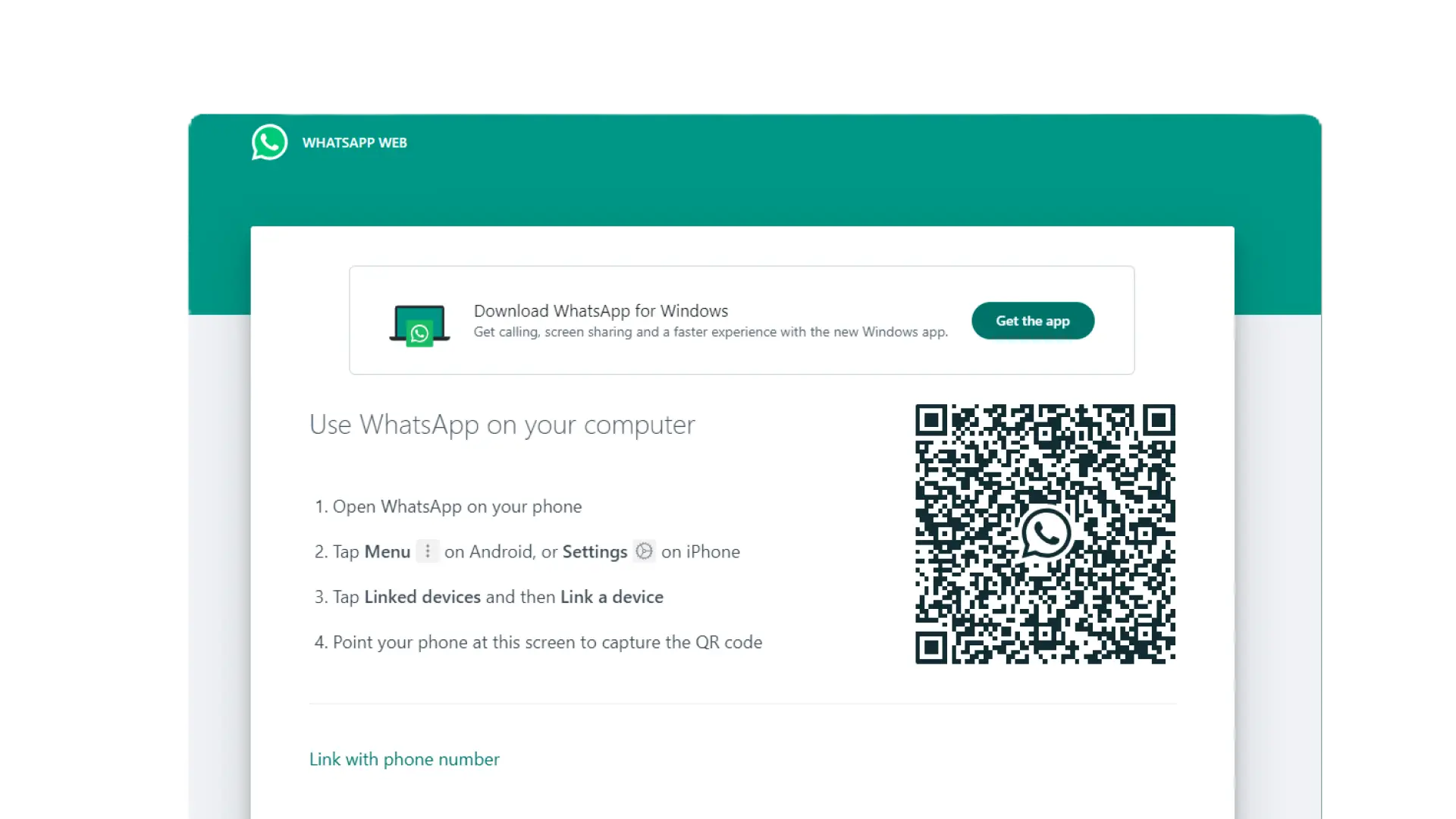
A web WhatsApp QR code is a scannable code that links your phone’s WhatsApp account to your browser or desktop app.
Here’s how it works:
- Open web.whatsapp.com in your browser.
- A unique QR code appears.
- Scan this QR code using the WhatsApp app on your phone.
Once scanned, your browser gains temporary access to your chats and media. It’s like a secure key that keeps your data synced in real-time.
Read Also:- QR Code WhatsApp Chatbot Link in Hindi: Complete Guide 2025
📌 Benefits of Using WhatsApp Web QR Code
The web WhatsApp QR code isn’t just a login method — it’s the gateway to a smoother messaging experience.
- Real-Time Sync
- Messages update instantly between phone and computer.
- Multi-Device Support
- Link up to 4 devices plus your main phone.
- Large Screen Comfort
- Type faster with a full-size keyboard.
- View media and documents on a bigger display.
📌 WhatsApp Web vs WhatsApp Desktop App
Both versions require the web WhatsApp QR code, but they differ in convenience.
| Feature | WhatsApp Web | WhatsApp Desktop App |
|---|---|---|
| Access | Open in any browser | Download & install (Windows/macOS) |
| Installation | No installation needed | Requires installation |
| Performance | Slightly browser-dependent | Slightly faster & more stable |
| Offline Notifications | No (requires phone online) | Partial notification support |
👉 If you want quick access, web WhatsApp QR code in the browser is enough. For heavy users, the desktop app may be better.
📌 How to Scan (3 Simple Steps) web whatsapp qr code scanning
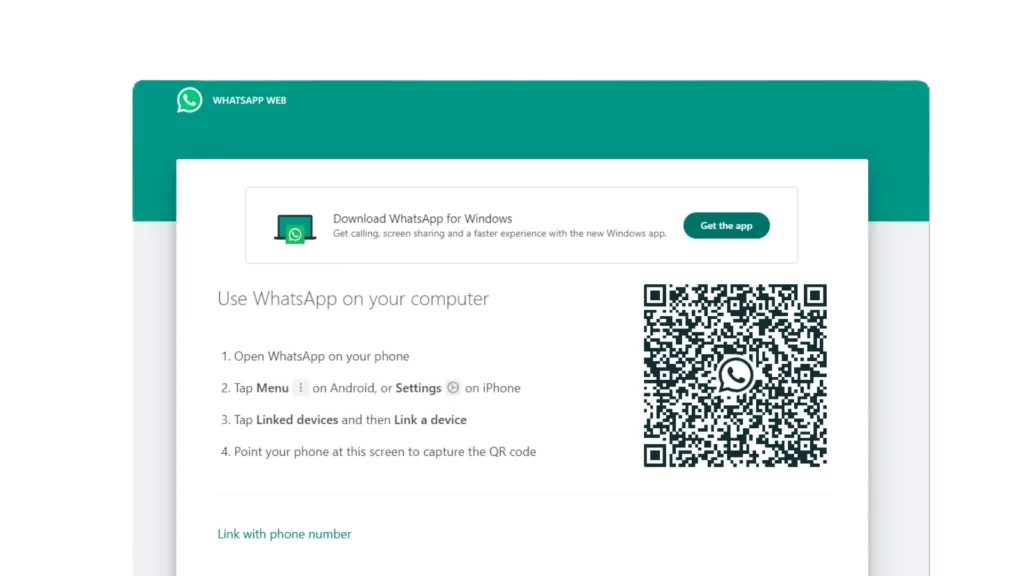
Step 1: Open WhatsApp Web
- Visit web.whatsapp.com in your browser.
- A web WhatsApp QR code will appear on your screen.
Read Also:- QR Code WhatsApp Chatbot Link in Hindi: Complete Guide 2025
Step 2: Open WhatsApp on Your Phone
- Android: Tap three dots → Linked Devices.
- iOS: Tap Settings → Linked Devices.
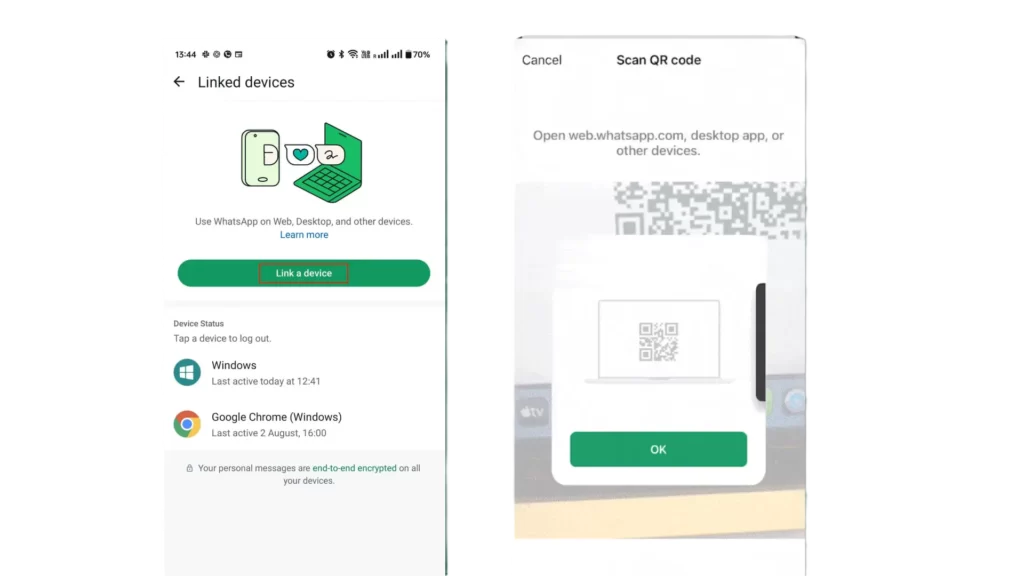
Step 3: Link Device
- Tap Link a Device.
- Point your phone camera at the web WhatsApp QR code.
- Done! Your chats sync in seconds.
Read also:- QR Code WhatsApp Chatbot Link in Hindi: Complete Guide 2025
📌 Key Features of WhatsApp Web
Messaging & Attachments
- Send text, photos, videos, PDFs directly.
- Syncs in real-time with your phone.
Status Viewing
- View and update status directly from WhatsApp Web.
Notifications
- Get browser notifications for new messages.
Disappearing Messages
- Auto-delete chats after 24 hours, 7 days, or 90 days (set in mobile app).
Group Management
- Add/remove participants, change group settings.
Customizations
- Dark Mode: Settings → Theme → Dark.
Keyboard shortcuts:
- Ctrl + N → New chat
- Ctrl + Shift + ] → Next chat
- Ctrl + E → Archive chat
📌 Multi-Device Support: Using Web WhatsApp QR Code on Multiple Devices
WhatsApp now supports multi-device mode:
- Link up to 4 browsers/desktops + 1 phone.
- Phone doesn’t need to stay online (connect once every 14 days).
- Works even if phone battery dies.
👉 To add more devices, scan the web WhatsApp QR code from each browser or desktop.
📌 Security & Privacy of Web WhatsApp QR Code
WhatsApp Web is end-to-end encrypted, meaning:
- QR codes expire quickly.
- Only your linked devices can access chats.
Security Tips:
- Always log out from public computers.
- Regularly check Linked Devices list.
- Never share your web WhatsApp QR code screenshot.
📌 Troubleshooting Common Web WhatsApp QR Code Issues
QR Code Not Scanning
- Clean your camera lens.
- Refresh page for a new QR code.
“Phone Not Connected” Error
- Ensure stable internet on both devices.
Messages Not Syncing
- Update WhatsApp on phone.
- Restart browser.
Incompatible Browser
- Use Chrome, Firefox, Safari, or Edge.
Read also:- QR Code WhatsApp Chatbot Link in Hindi: Complete Guide 2025
📌 Using Web WhatsApp QR Business
Businesses use WhatsApp Web for:
- Customer support
- Order tracking
- Quick responses via templates
Pro Tip: Use shared inbox tools to manage multiple WhatsApp numbers.
📌 Expert Tips for Power Users
- Pin Chats for quick access.
- Search Messages by keyword.
- Keyboard Shortcuts for speed.
📌 FAQs
Q1. What is a web WhatsApp QR code?
Ans:- A secure code to log into WhatsApp Web from your browser.
Q2. How long does the QR code last?
Ans:- It expires in under 1 minute; refresh to get a new one.
Q3. Can I use WhatsApp Web without scanning QR code?
Ans:- No, initial linking always requires a QR scan.
Q4. Is web WhatsApp QR code safe?
Ans:- Yes, it’s encrypted and secure if used on trusted devices.
📌 Conclusion
The web WhatsApp QR code makes switching between devices smooth, fast, and secure. Whether you’re chatting casually or managing business, knowing how to set up and use it efficiently saves time and boosts productivity.
✅Read Also:-
WhatsApp Web QR code scanning, WhatsApp Web login guide, QR code authentication WhatsApp, WhatsApp Web tutorial 2025, WhatsApp QR code troubleshooting, WhatsApp Web vs WhatsApp Desktop App, Multi-device support WhatsApp, WhatsApp Web security features, WhatsApp Web keyboard shortcuts, QR code not scanning.
[…] par aata hai WhatsApp QR code with UTM tracking. Iska use karke aap easily track kar sakte ho ki QR code kis source se scan hua, […]